Merging Data in n8n
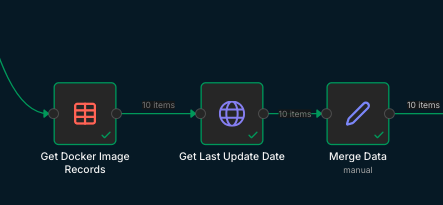
Merging data in n8n can be a little confusing at first. Take this partial workflow for instance:
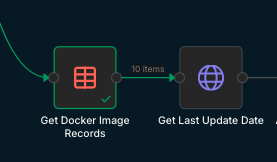
Here we read records from a data table and call a HTTP service to get information related to each record. The goal is to get the latest release date via the HTTP call and append it to the data from the data table.
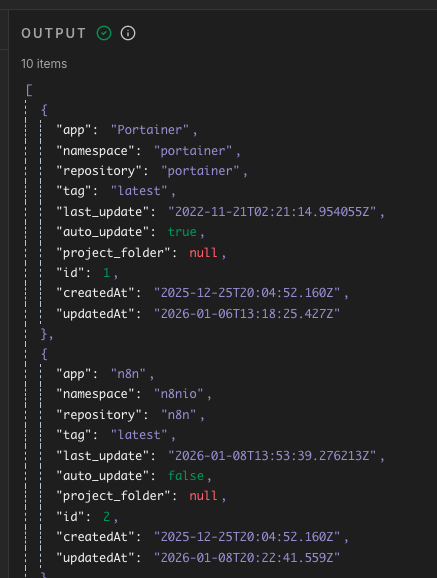
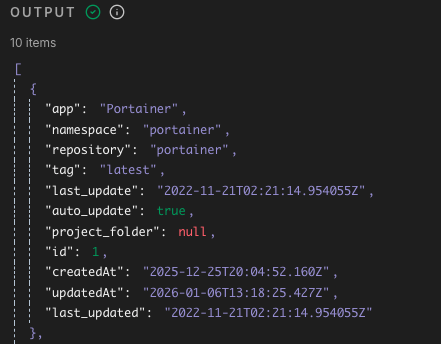
The output of the data table node looks like this:
The output of the HTTP node looks like this:
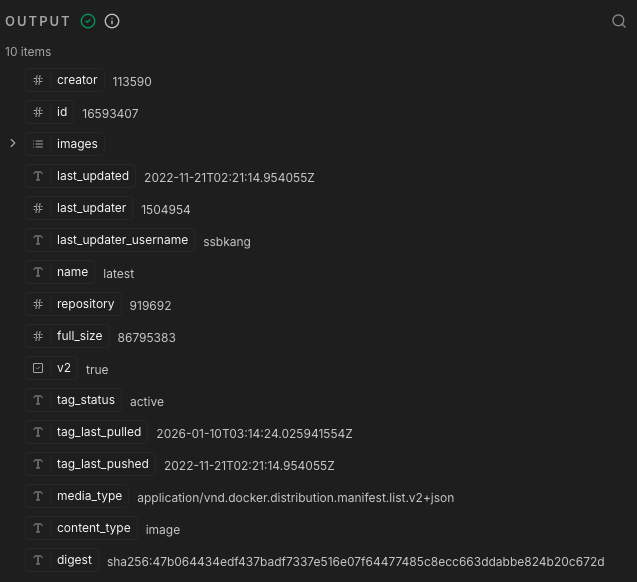
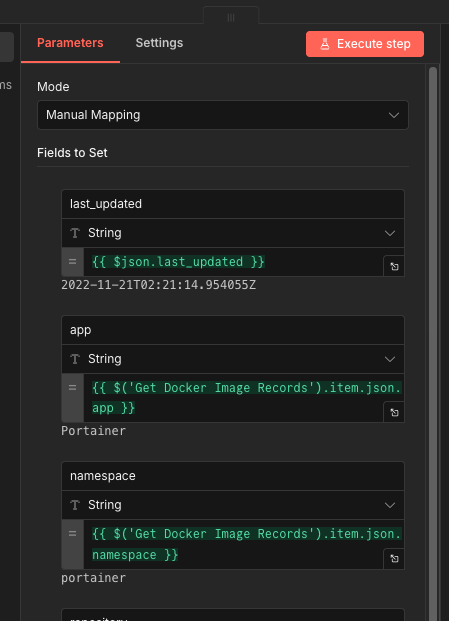
The rest of the workflow uses the data table output plus the latest release date as input. So how do we merge the output data from the two nodes? The simplest would be to use a “Edit Fields (Set)” node and manually map the fields from the data table node and then add in the fields we want from the HTTP node. That requires quite a bit of manual mapping plus it’s brittle since any new columns added to the data table schema would require you to add another manual mapping. Here are a couple of alternatives to that method.
Using a Code Node#
This one is, in my opinion, the easiest way to accomplish the task. It does require you to write a bit of JavaScript though.
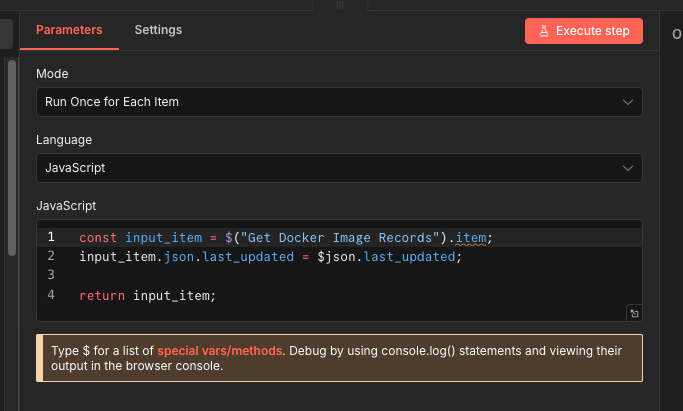
Make sure to set the “Mode” to “Run Once for Each Item”.
- Here we access the output of the data table node
const input_item = $("Get Docker Image Records").item;
- Add an additional field to the item, pulling the
last_updatedfield from the HTTP node. Since it is the immediate parent of the code node, we can just refer to that output object as$json:
input_item.json.last_updated = $json.last_updated;
- Finally, we set the output of the code node by just returning our “enriched” object.
return input_item;
Use a Merge Node#
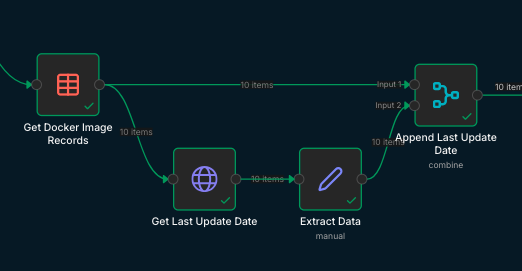
Here we use a merge node to do the job.
- Add a “Edit Fields” node to isolate the data from the HTTP call that you want to append.
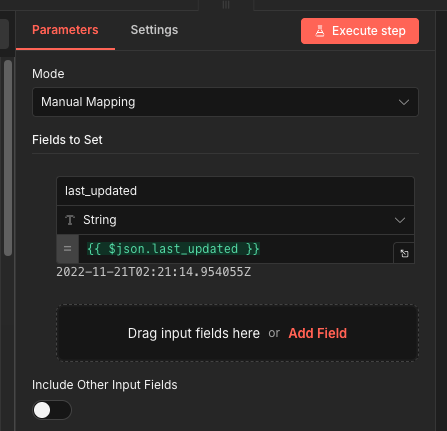
- Add a Merge node.
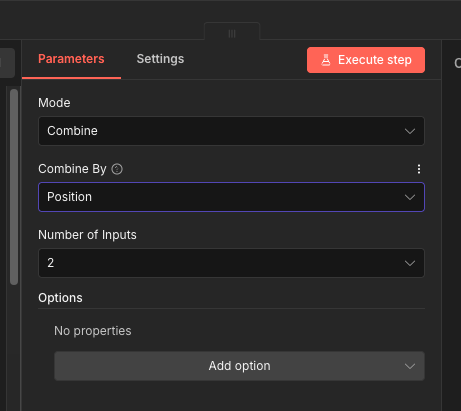
- Connect the data table node to
input 1of the merge node. - Connect the “Edit Fields” node to
input 2of the merge node.
The output of the merge node will be the data from the data table node with the last_updated field from the HTTP node appended.
Use a Edit Fields Node#
Here’s a look how to use a “Edit Fields” to merge the data.
Like mentioned earlier, the set up is simple (just drag the fields over) but a bit more tedious.