Using the n8n SSH Node

The n8n SSH node gives you ability to do pretty much anything you would do if you logged into a remote machine via a terminal session. Here are the steps I took when setting things up for my workflows:

  1. Create a new user.
  2. Create SSH keys for the new user.
  3. Create the script you want to enable in n8n.
  4. Configure the SSH key so only a specific script can be run.

Note that all of these steps are optional. You could just set up the node, create a new set of n8n credentials via username/password, and run any command from n8n. In my case, I run n8n on a virtual private server (VPS) so I wanted to restrict what it could do. If you’re running n8n in a home lab environment, you probably don’t need to be this restrictive.
[Read more]

Merging Data in n8n

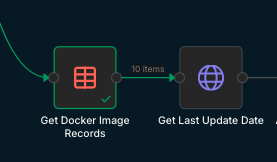
Merging data in n8n can be a little confusing at first. Take this partial workflow for instance:

Here we read records from a data table and call a HTTP service to get information related to each record. The goal is to get the latest release date via the HTTP call and append it to the data from the data table.

The output of the data table node looks like this:

[Read more]

n8n Custom Variables Alternative

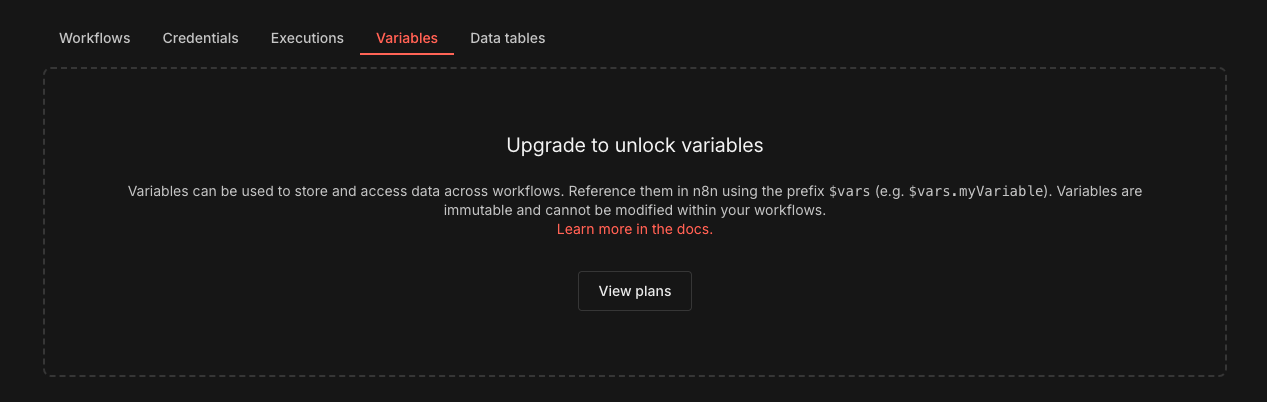
If you’re self-hosting an n8n instance, you may have noticed a “Variables” tab on the main admin page.

This would allow you to set variable values that can be used in all of your workflows. It is unfortunately only available on a paid plan. If you need this functionality, here’s an alternative method. DO NOT use this for sensitive information like passwords or API keys though as using this method results in the variable values showing up in the execution logs of your workflows.

[Read more]

SSH via Tailscale on a VPS

After signing up for a new VPS service on Hostinger I went about trying to “harden” the server. This involved the minimal steps of setting up SSH keys on my local machines and uploading the public keys to the server so I could SSH into it. I then removed the ability to SSH via password. While this did what was intended, keeping anyone other than me from SSH’ing into it, it didn’t stop the nearly constant attempts by bots to log into the machine. So with that in mind, I decided to add some more defensive layers. Here’s what I did.

[Read more]

Asus Router Admin Page with AdGuard Home

To access the administration site on my new Asus router, the documentation says to go to http://www.asusrouter.com. This worked great during initial setup. I also run AdGuard Home to block ads at the router level. This involves setting the DNS server for the router to the IP address of the machine hosting AdGuard. This also worked perfectly, but when I did this I started getting 404 errors when navigating to http://www.asusrouter.com. I suspect by default, the router is set up to route that address to itself. Setting the DNS server to a custom value overrides this behavior. We can get it back by using a DNS Rewrite in AdGuard Home.

[Read more]