n8n Custom Variables Alternative
If you’re self-hosting an n8n instance, you may have noticed a “Variables” tab on the main admin page.
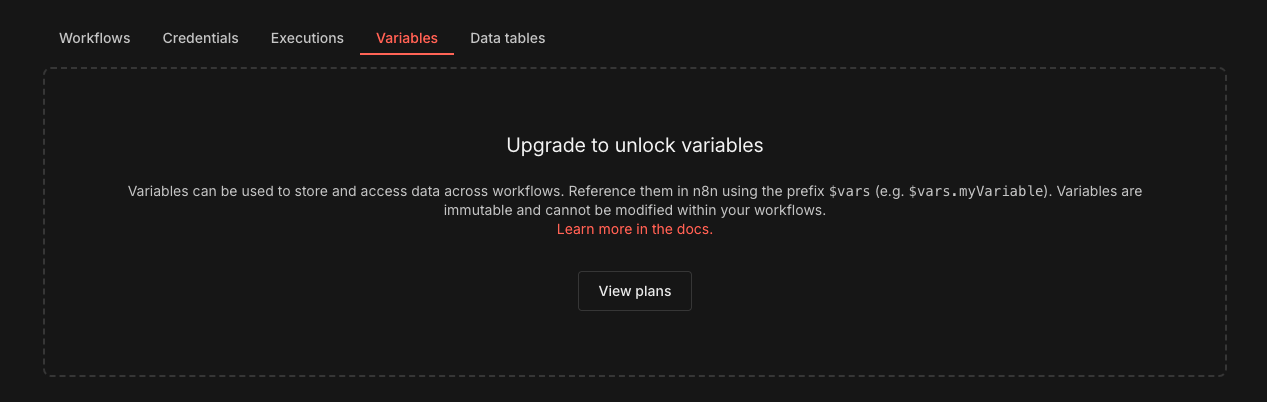
This would allow you to set variable values that can be used in all of your workflows. It is unfortunately only available on a paid plan. If you need this functionality, here’s an alternative method. DO NOT use this for sensitive information like passwords or API keys though as using this method results in the variable values showing up in the execution logs of your workflows.
Using a Sub-Workflow as a Workaround#
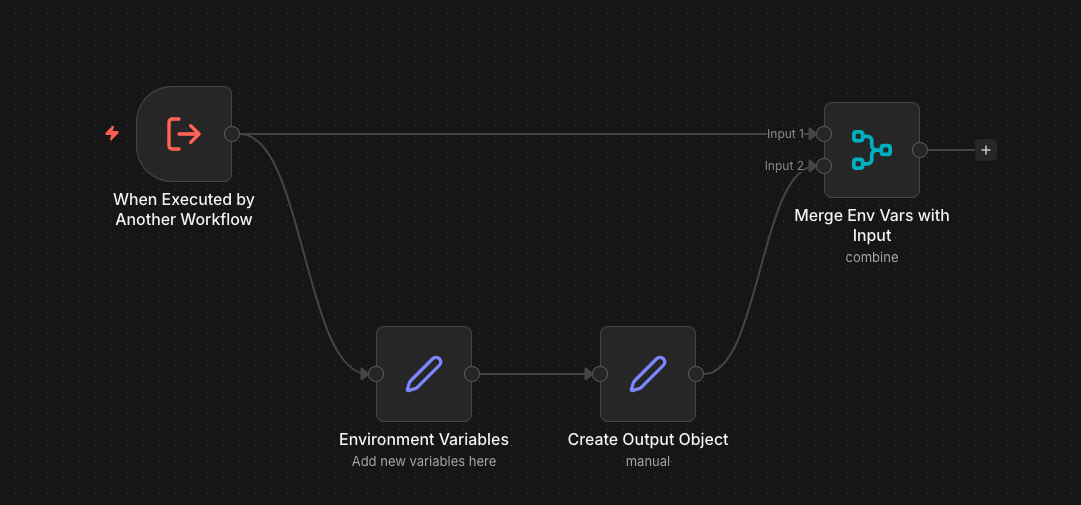
- Create a new workflow.
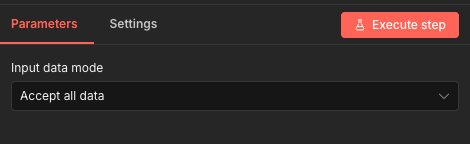
- This will be called by other workflows so set the trigger to “When executed by another workflow”.
- Add a “Edit Fields (Set)” node.
- Define the variables as fields. Don’t forget to set the value type for each field (String, Number, etc.)
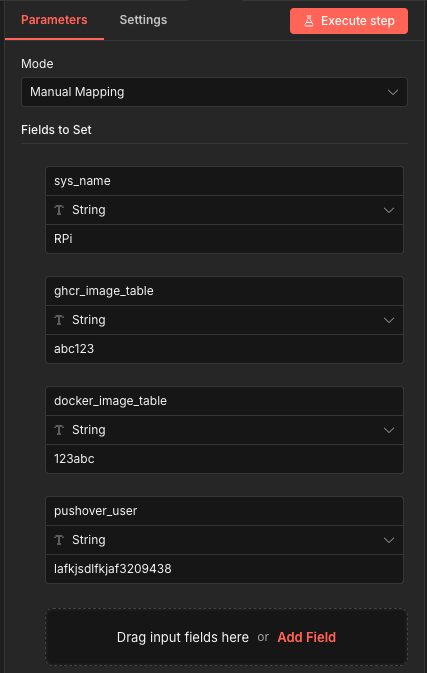
- Add another “Edit Fields (Set)” node.
- Define a field to hold all of the variable values. This is to group them up in the output and create a clear separation from the input data.
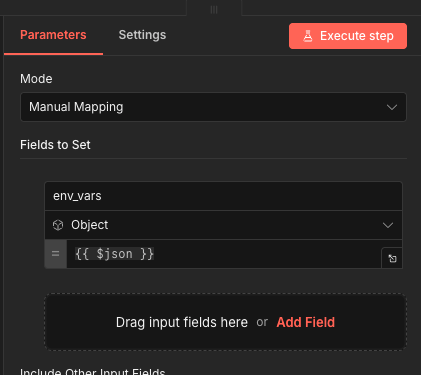
- Add a Merge node.
- Set the
Modeto “Combine” andCombine Byto “Position”.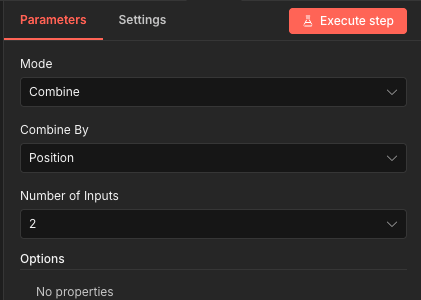
- Connect the trigger node to input 1 and the last Edit Fields node to input 2.
- Rename, save and publish the workflow.
- In the workflow where you need to reference these variables, add a “Execute Sub-workflow” node and select the workflow you just created.
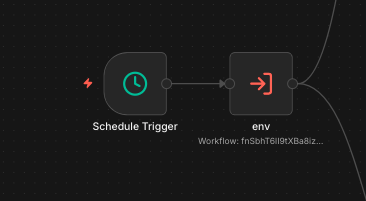
To access the variables, use the syntax $('Name of Execute Sub-workflow node').first().json.env_vars. For example, I named my “Execute Sub-workflow node” env and the name of the variable I want to access is sys_name.
{{ $('env').first().json.env_vars.sys_name }}
Now when you need a new custom variable, just add it to the workflow, save and publish.